SRT to Speech Online: Convert, Edit & Fix Subtitle Files Easily
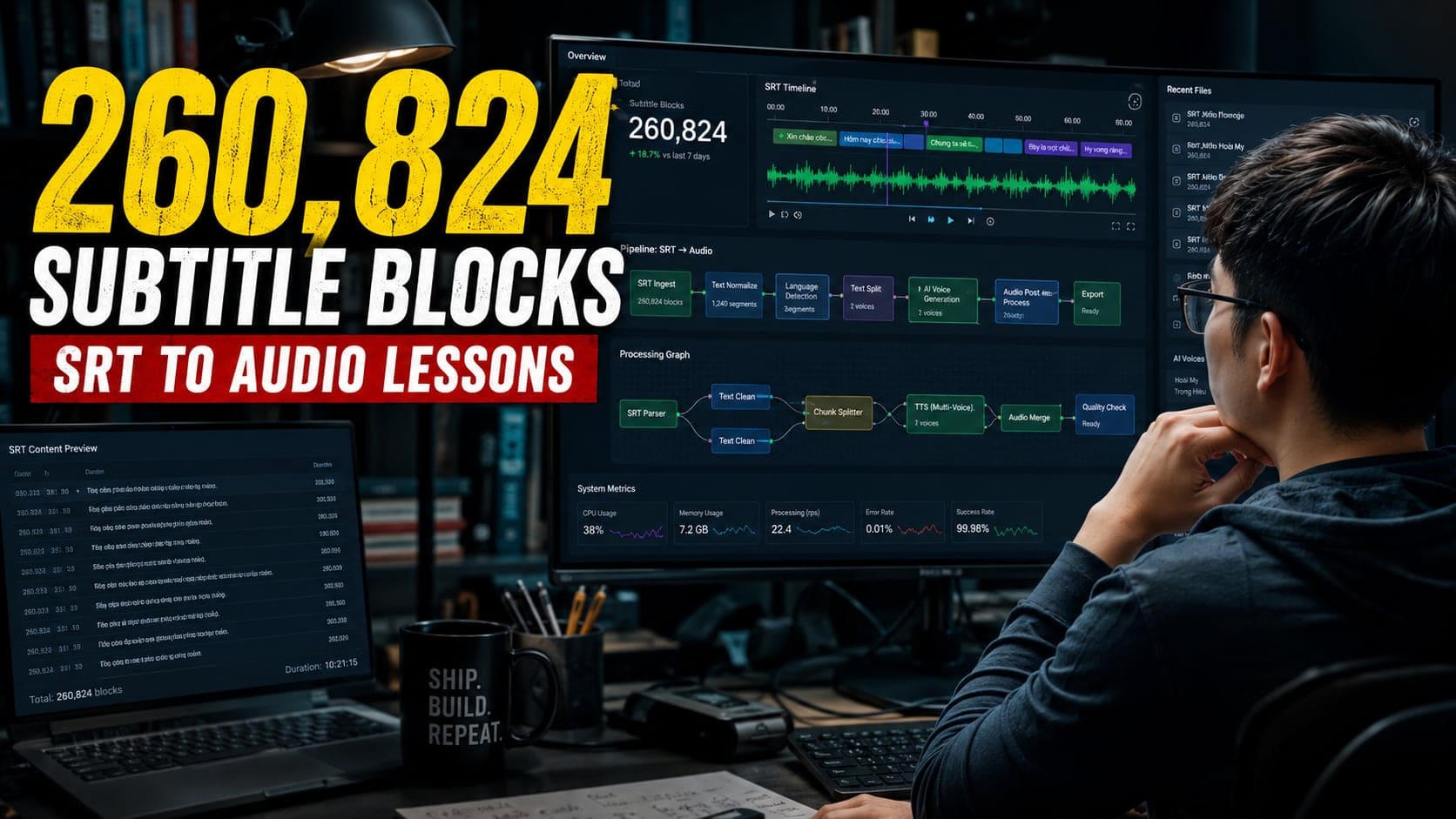
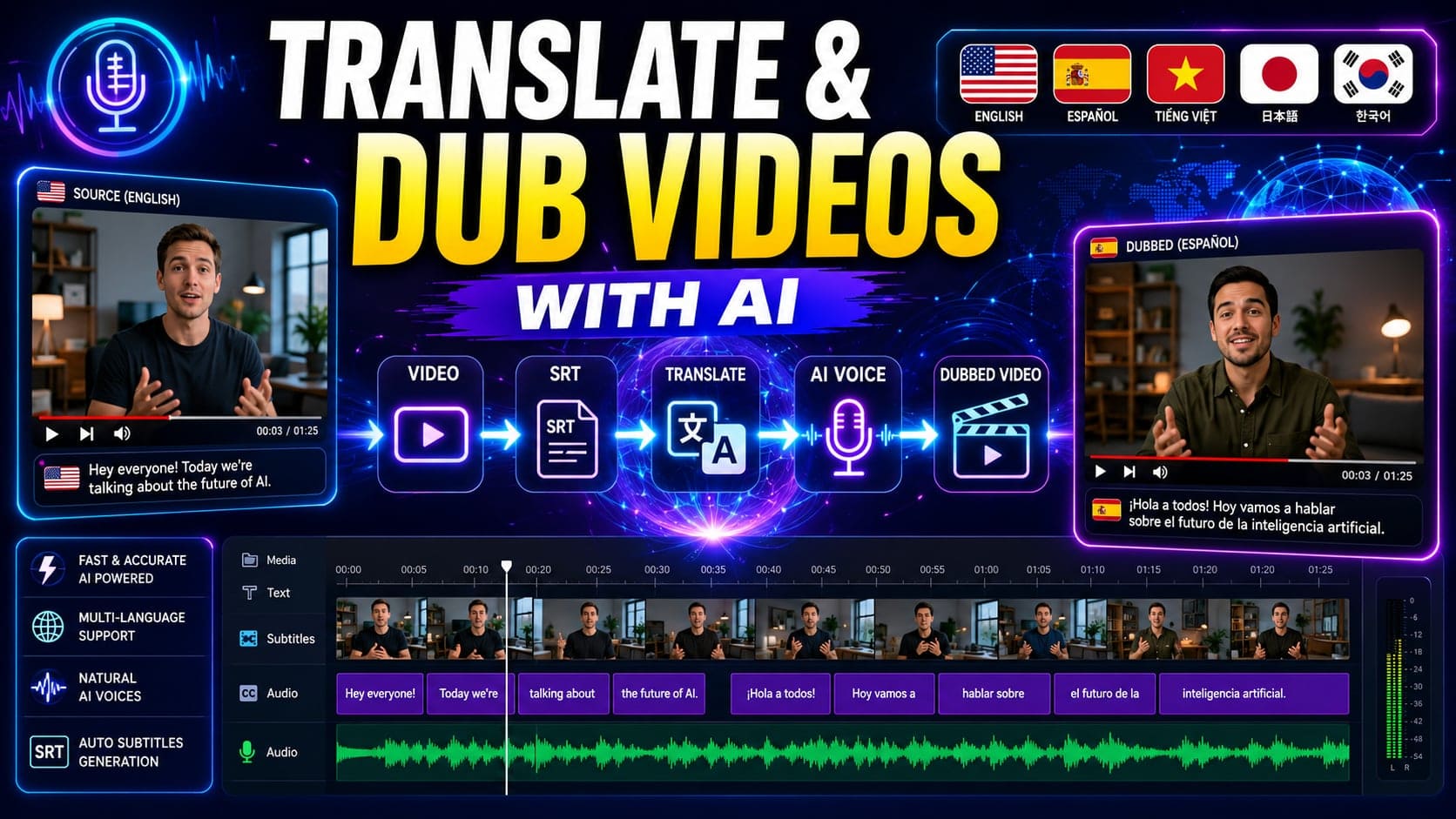
Converting SRT files to speech is one of the fastest ways to create voiceovers for YouTube, TikTok, online courses, or multilingual videos.
But many users run into a common problem:
- SRT format errors
- Broken timestamps
- File not recognized
- Dialogue timing mismatch
In this guide, you’ll learn:
- What an SRT file is
- How to open and fix SRT files
- How to paste full SRT content if formatting fails
- How to edit subtitles before converting
- How to convert SRT to speech online
What Is an SRT File?
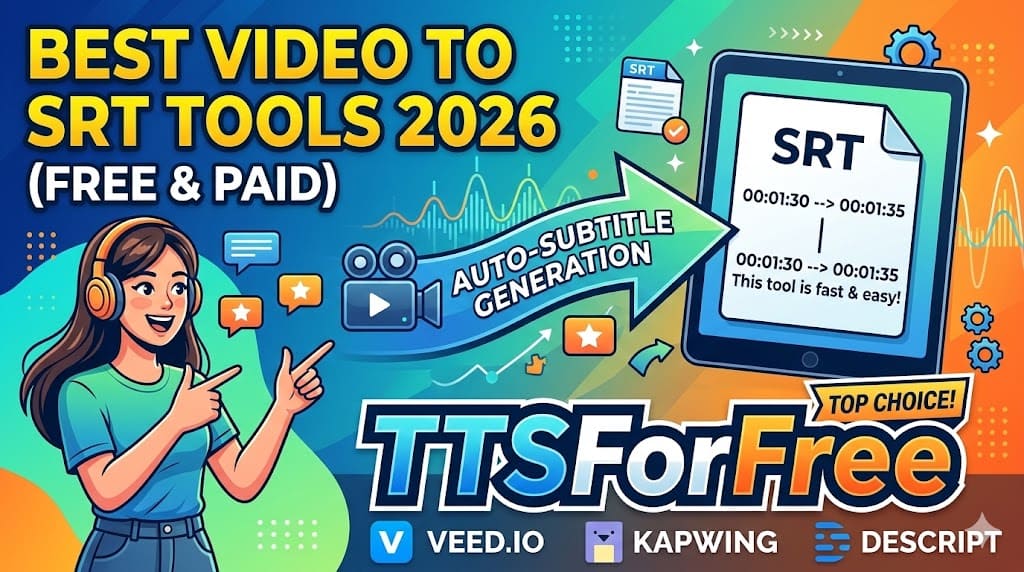
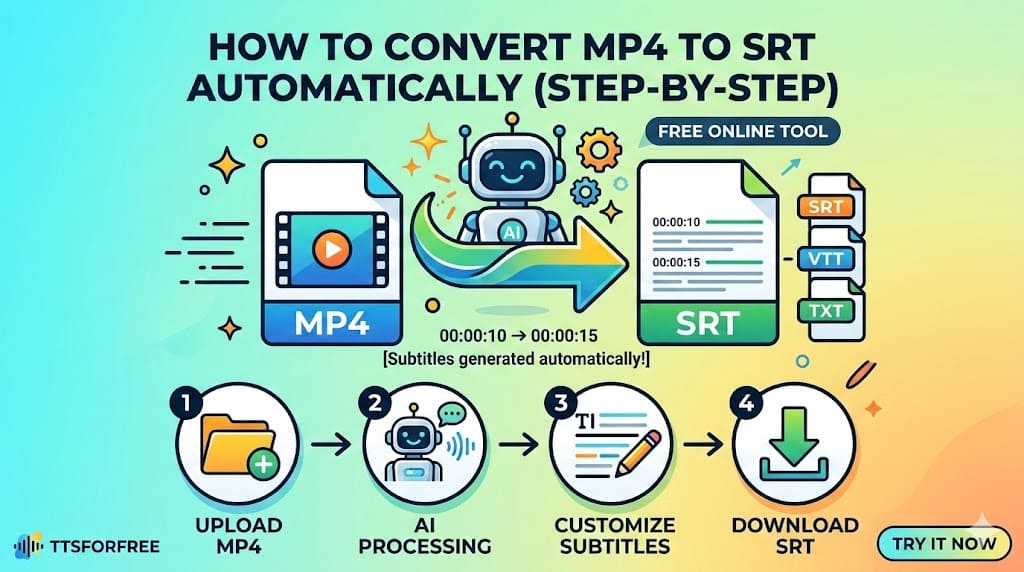
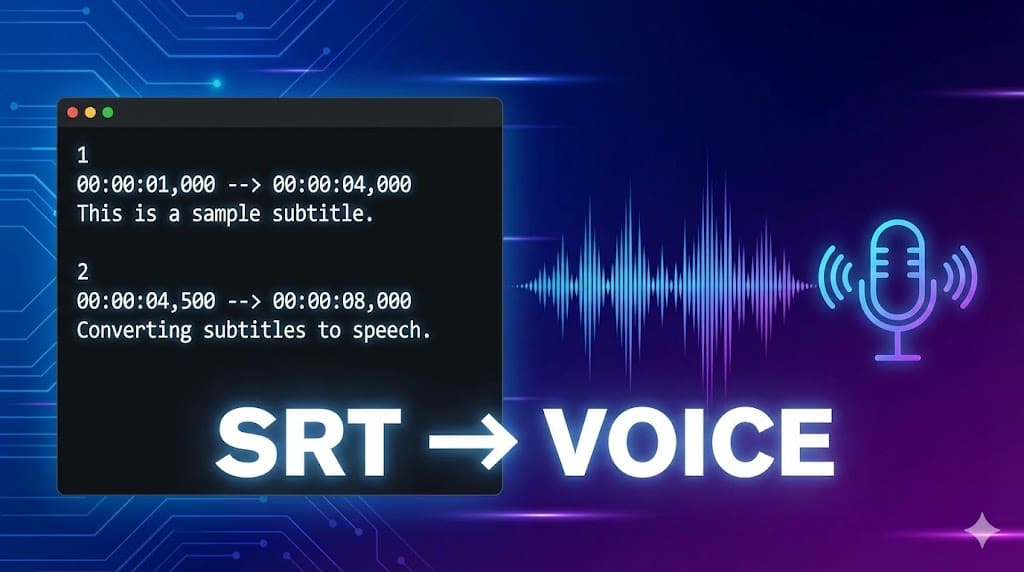
An SRT (SubRip Subtitle) file is a plain text file used to store subtitles.
Each subtitle block includes:
- Subtitle number
- Start and end timestamps
- Subtitle text
Example:
If even one timestamp is incorrect, the file may not work properly.
How to Open an .SRT File Using Notepad
If your SRT file has format errors or doesn’t upload correctly, the first step is to open and inspect it.
Method 1: Open with Notepad (Windows)
- Right-click the .srt file
- Click “Open with”
- Choose “Notepad”
If Notepad doesn’t appear:
- Click “Choose another app”
- Select Notepad manually
Since SRT is a plain text file, you can edit it directly.
What to Check
Make sure:
- Each subtitle block starts with a number
- Timestamps follow this format:
-
00:00:01,000 --> 00:00:04,000 - There is an empty line between subtitle blocks
Common mistakes:
- Missing comma in milliseconds
- Extra spaces in timestamps
- Overlapping time ranges
What If the SRT Format Is Still Wrong?
Sometimes fixing manually takes too long.
Instead of uploading the file directly, you can:
👉 Open the file in Notepad
👉 Copy the full subtitle content
👉 Paste it into an online SRT editor
On TTS For Free, you can:
- Paste full SRT content directly
- Fix or edit subtitles inside the built-in editor
- Adjust text before generating speech
Try it here:
👉 https://ttsforfree.com/en/srt-to-speech/
This helps avoid format rejection errors.

Translate Your SRT File Before Converting
If your subtitles are in another language, you can translate them before generating speech.
On TTS For Free, you can:
- Enable the Translation column
- Choose your target language
- Translate all subtitle blocks automatically
- Download the translated SRT file
This is useful for:
- YouTube auto-dubbing
- Multilingual content
- Reusing subtitles across languages

Edit Subtitles Before Converting to Speech
One major advantage of using an online SRT editor is control.
Before converting to speech, you can:
- Fix spelling mistakes
- Adjust sentence flow
- Remove unnecessary lines
- Merge or split subtitle blocks
- Rewrite awkward phrasing
This is especially useful when:
- You auto-generated subtitles from YouTube
- You translated subtitles from another language
- You want clearer voice output
After editing, you can:
- Generate audio
- Download updated SRT file
- Export voice as MP3
Add:
You can also use Quick Replace to update repeated words or names across all subtitle blocks instantly.
Done.

How to Convert SRT to Speech (Step-by-Step)
Step 1: Upload or Paste SRT
Go to:
👉 https://ttsforfree.com/en/srt-to-speech/
Upload your file or paste full SRT content.

Step 2: Choose Voice
Select:
- Male or female voice
- Language
- Tone and speed
If your SRT includes multiple speakers, you may also use:
👉 https://ttsforfree.com/en/multi-voice-tts/
This allows more dynamic dialogue.

Step 3: Adjust Speech Settings
Fine-tune:
- Speaking speed
- Pauses
- Clarity
This helps avoid robotic output.
Step 4: Generate & Download
Click generate.
You can:
- Download MP3 audio
- Download edited SRT file
- Use it for YouTube dubbing or podcast

Common SRT to Speech Problems (And Fixes)
Problem: File Not Accepted
Fix:
Open in Notepad → Check timestamp format → Remove extra spaces.
Problem: Audio Sounds Too Fast
Fix:
Lower speech rate inside the tool before exporting.
Problem: Dialogue Sounds Flat
Fix:
Use Multi-Voice TTS for different characters.
Problem: Subtitle Timing Feels Off
Fix:
Adjust timestamps manually in the editor before converting.
Why Convert SRT to Speech Instead of Recording Manually?
Manual recording requires:
- Microphone
- Quiet environment
- Editing software
- Retakes
SRT to speech allows:
- Instant voiceover
- Scalable content production
- Multilingual dubbing
- Faster workflow
For creators and automation channels, this is a major advantage.
When Should You Use SRT to Speech?
Best use cases:
- YouTube auto dubbing
- TikTok short videos
- Podcast without microphone
- Multilingual content
- Converting subtitles into audiobooks
If you already have subtitles, converting them to speech is the fastest path to audio content.
Final Thoughts
SRT files are simple—but formatting mistakes can cause frustration.
The easiest workflow is:
- Open SRT in Notepad
- Check formatting
- Paste into an online editor
- Edit subtitles
- Convert to speech
- Download audio
With the right tools, turning subtitles into natural voice takes only a few minutes.
Try converting your SRT file here: