How to Convert MP4 to SRT Automatically (Step-by-Step)
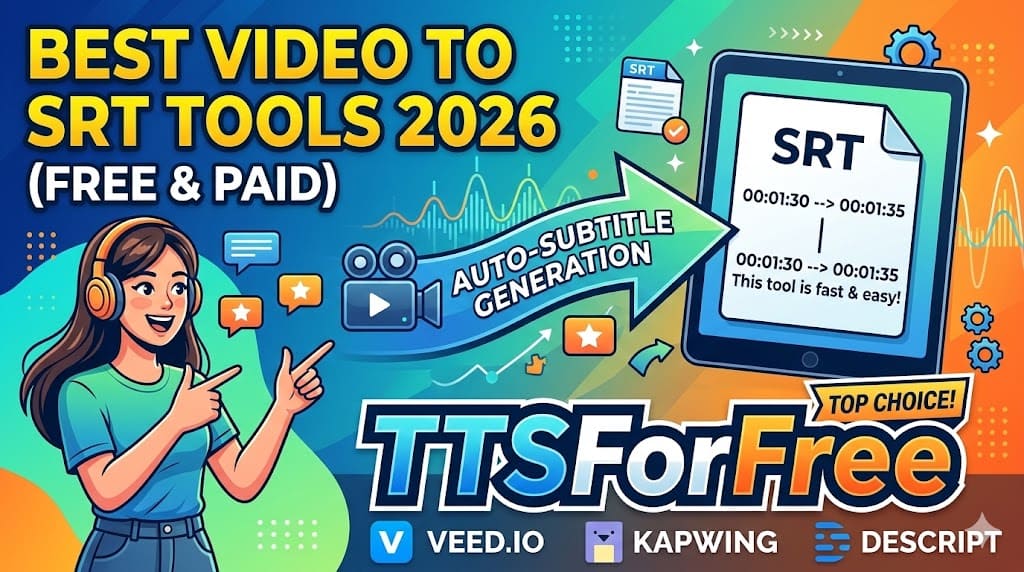
If you need subtitles for your video but don’t want to create them manually, converting MP4 to SRT automatically is the fastest solution. With modern AI-powered tools, you can upload a video, wait a few minutes, and get a fully generated subtitle file ready to download.
In this guide, I’ll show you exactly how to convert MP4 to SRT step by step using our online video-to-srt tool — no software installation required.
👉 Try it here:
https://ttsforfree.com/en/video-to-srt/
What Is MP4 to SRT Conversion?
- MP4 = Your video file (with audio).
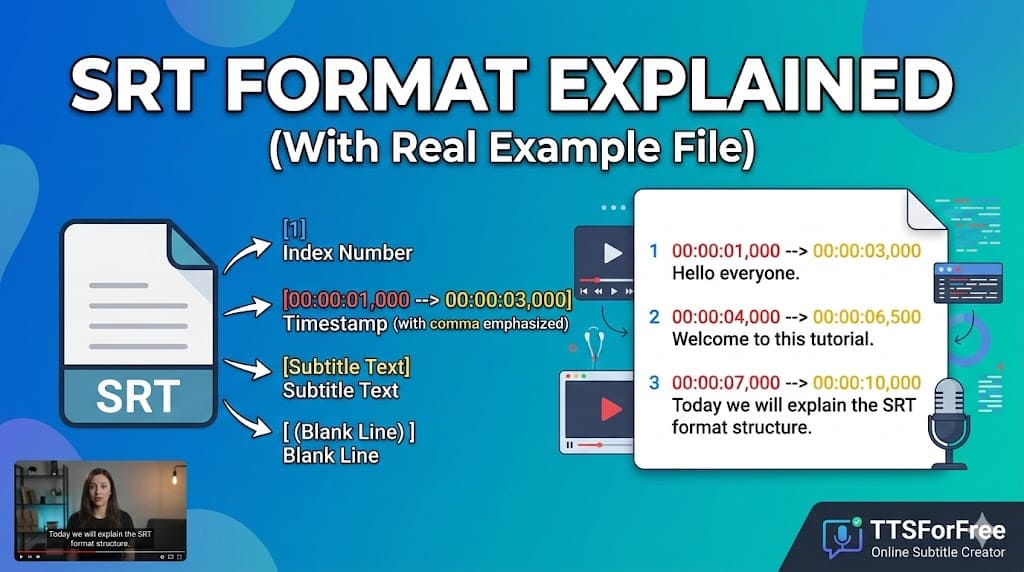
- SRT = A subtitle file containing timestamps + text.
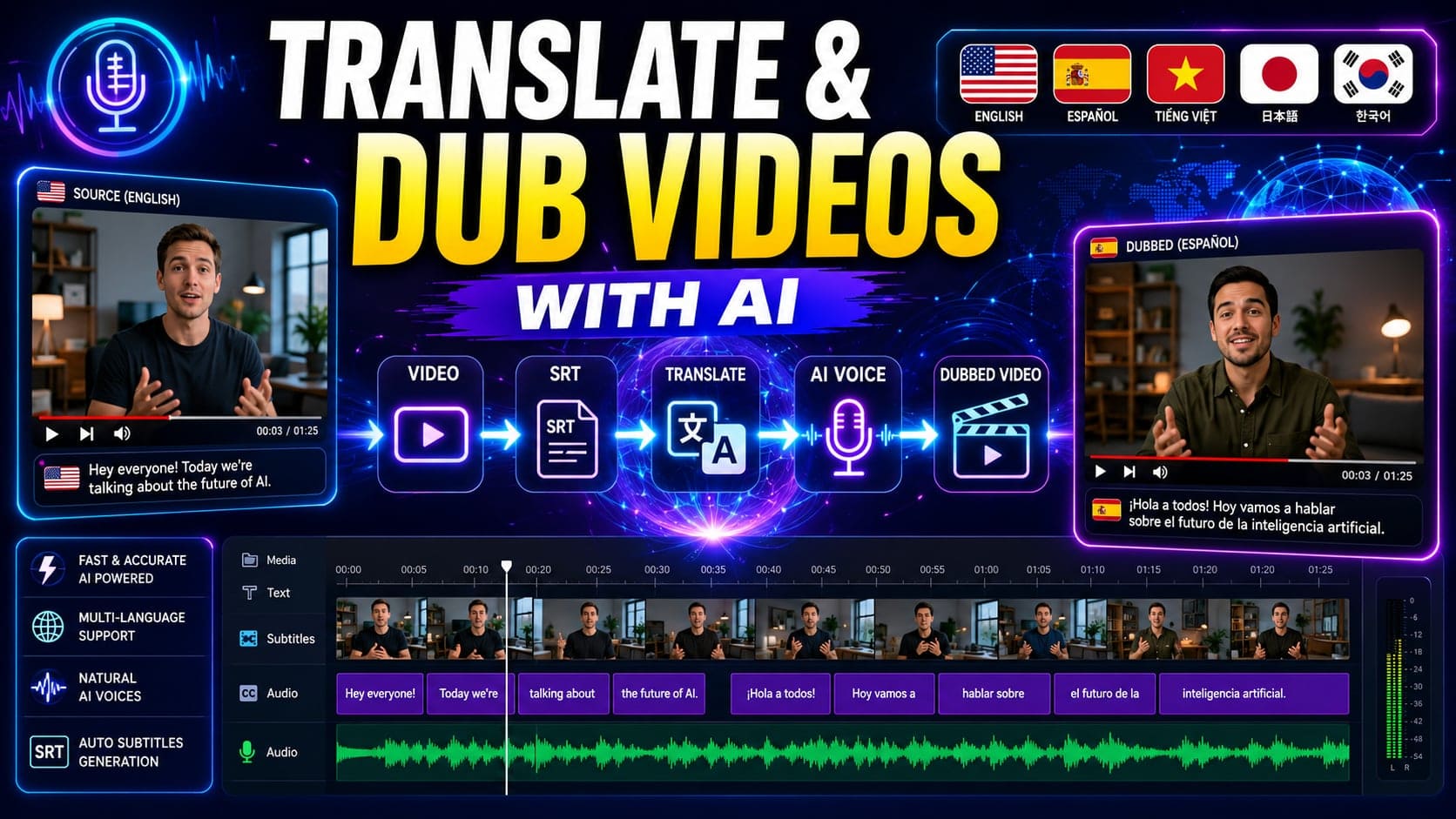
When converting MP4 to SRT, the system:
- Extracts audio from the video
- Uses speech recognition (AI)
- Generates timestamped subtitles
- Outputs an editable SRT file
This process is also known as automatic subtitle generation or speech-to-text for video.
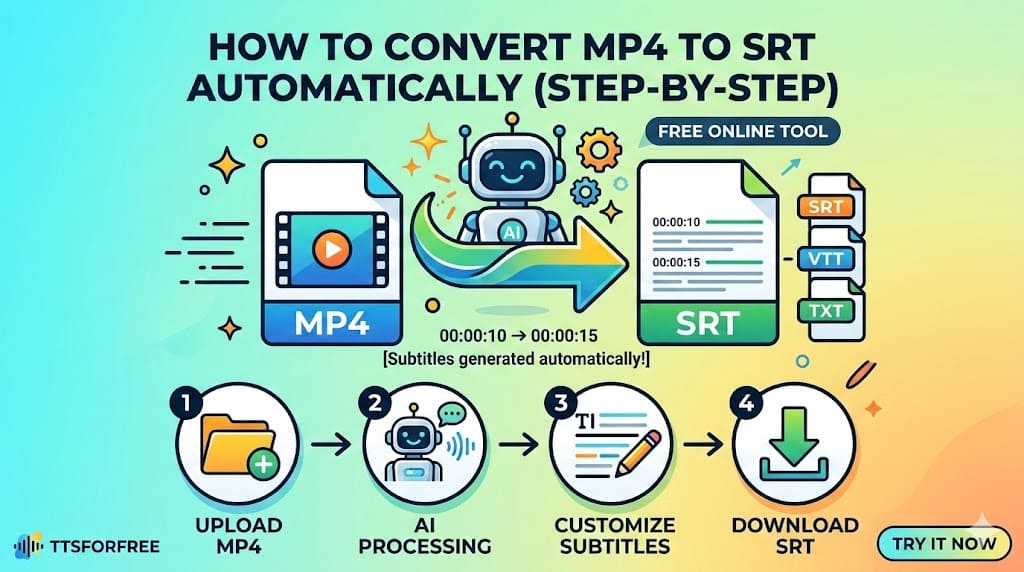
Step-by-Step: Convert MP4 to SRT Online
1️⃣ Upload Your MP4 (or MP3)

- Go to the video-to-srt page.
- Upload your MP4 video file.
- You can also upload MP3 audio if you already extracted the sound.
✅ Supports:
- .mp4
- .mp3
- Other common audio formats
No manual audio extraction needed — the system handles everything automatically.
2️⃣ Wait for Processing
After uploading:
- The system extracts the audio.
- AI transcribes speech into text.
- Timestamps are generated automatically.
Processing time depends on video length:
- 1–3 minutes video → usually under 1 minute
- Longer videos → slightly more time
You’ll receive structured subtitle blocks with proper timing.
3️⃣ Adjust Maximum Characters per Line

One powerful feature is the ability to:
- Control maximum characters per subtitle line
- Improve subtitle readability
- Optimize for YouTube, TikTok, or Reels
Why this matters:
- Too many characters → hard to read
- Too few → unnatural breaks
- Proper formatting → professional result
You can easily tweak the layout before downloading.
4️⃣ Choose Output Format: SRT, TXT, or VTT
After editing, you can download subtitles in different formats:
- SRT → Standard subtitle format (most popular)
- VTT → Web Video Text Tracks (used in HTML5)
- TXT → Plain text transcript
This makes it flexible for:
- YouTube
- TikTok
- Course platforms
- Websites
🔄 View History, Restore & Re-download Subtitles Anytime
One powerful feature of our MP4 to SRT tool is the ability to access your conversion history.
After processing, your jobs are saved so you can:
- View previous subtitle conversions
- Copy SRT content instantly
- Download the file again
- Restore and continue editing
This means:
- You don’t need to re-upload the same video
- You won’t lose your subtitle file
- You can make adjustments later
Perfect for creators who:
- Update videos frequently
- Test different subtitle formats
- Manage multiple projects

Why Use an Online MP4 to SRT Tool?
Instead of installing heavy software like Adobe Premiere Pro or Camtasia, you can:
- Convert MP4 to SRT in your browser
- Avoid complex editing workflows
- Save hours of manual typing
- Generate subtitles in multiple languages
Perfect for:
- Content creators
- Educators
- Developers
- Social media marketers
- Podcast creators
Bonus: Translate or Read Your SRT
Once you generate subtitles, you can do even more:
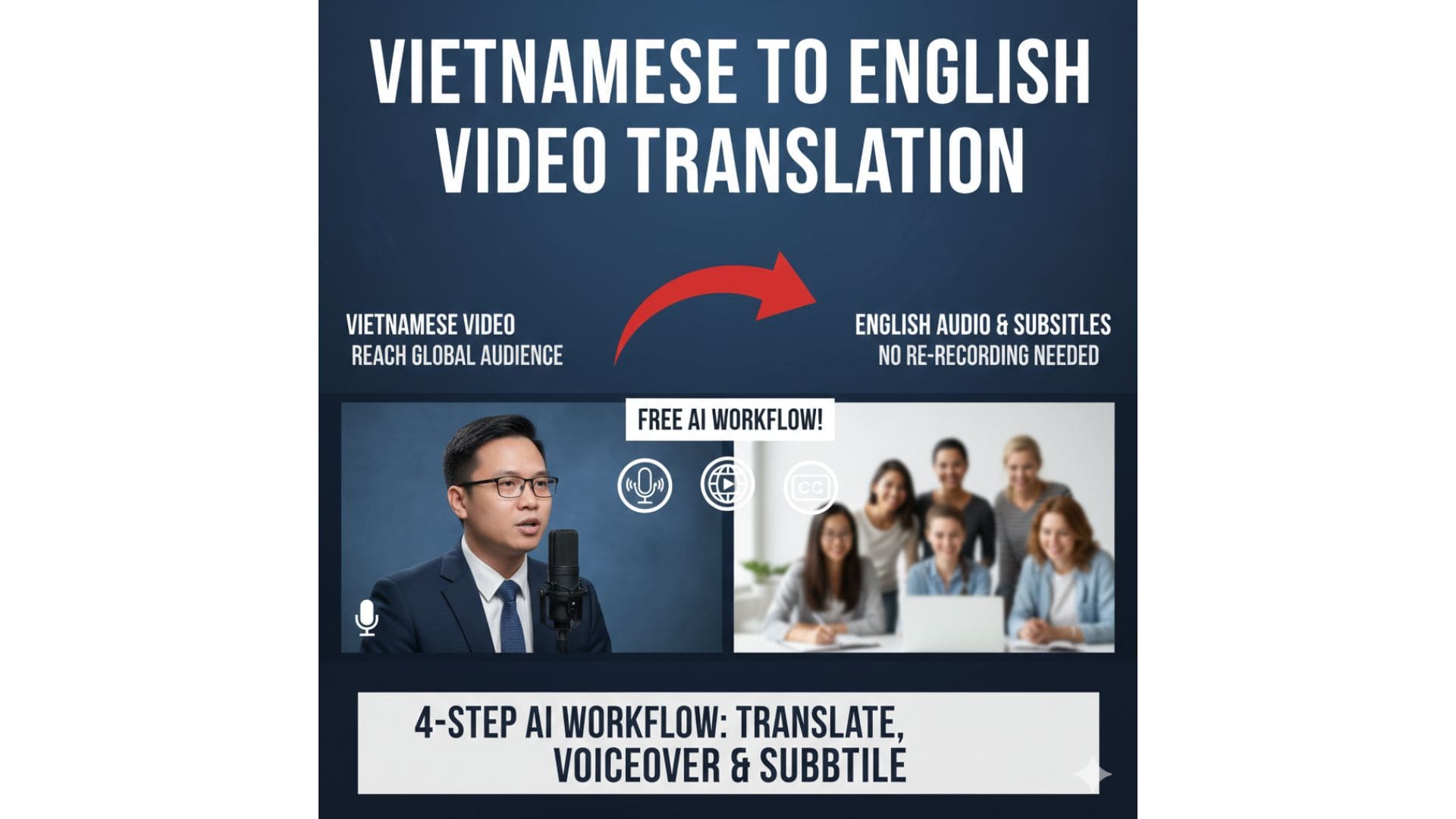
🔹 Translate SRT
Need multilingual subtitles?
You can translate your subtitle file easily here:
👉 https://ttsforfree.com/en/srt-translate/
This helps you:
- Reach global audiences
- Expand YouTube reach
- Improve SEO in multiple languages
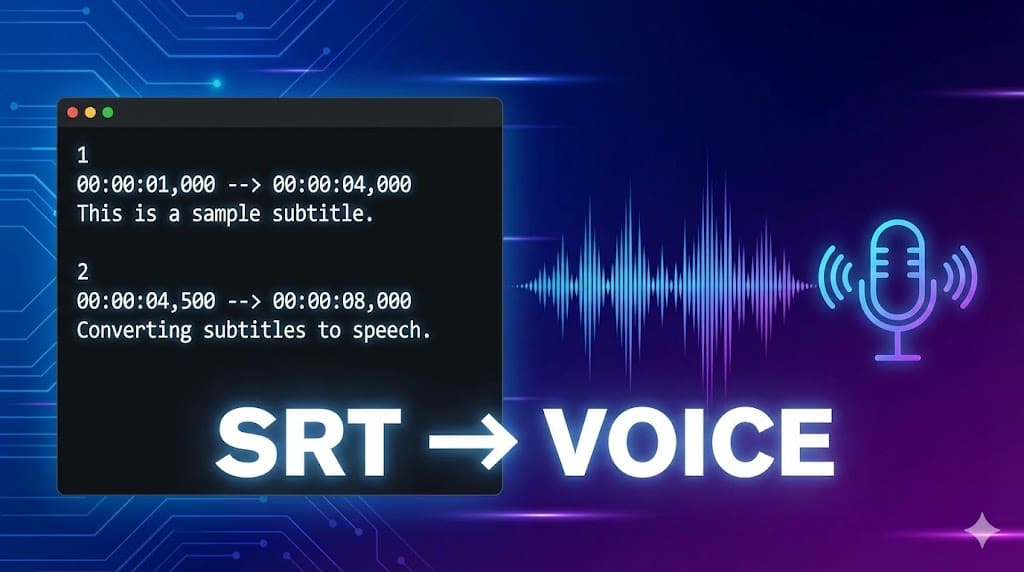
🔹 Convert SRT to Speech
You can also turn subtitles back into audio using:
👉 https://ttsforfree.com/en/srt-to-speech/
This is useful for:
- Dubbing
- AI voiceover
- Accessibility
- Podcast creation
SEO Tips for MP4 to SRT
If you're using subtitles for YouTube SEO:
- Always upload SRT instead of auto-caption
- Include keywords in subtitles naturally
- Keep lines readable (not too long)
- Add punctuation for clarity
Search engines can index subtitle text, improving discoverability.
Final Thoughts
Converting MP4 to SRT automatically is now simple:
- Upload MP4 or MP3
- Wait for AI transcription
- Adjust characters per line
- Download as SRT, TXT, or VTT
No software. No manual typing. Just fast and accurate subtitles.
If you create videos regularly, this workflow can save you hours every week.
Try the tool here: