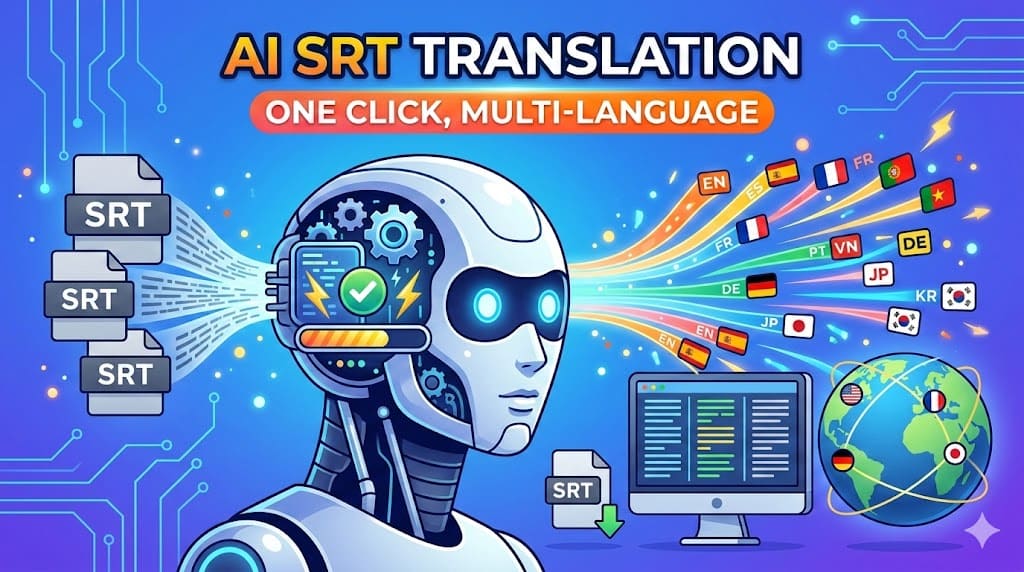
How to Translate SRT Files Automatically
SRT (SubRip Subtitle) files are one of the most common subtitle formats used for videos, movies, online courses, and YouTube content. When you want to reach a global audience, translating subtitles into multiple languages becomes very important.
In the past, translating subtitles usually required manual editing line by line. Today, with modern SRT translator tools powered by AI, subtitle translation can be done much faster.
In this guide, we will compare manual subtitle translation vs AI subtitle translation, and show you how to translate SRT files easily.
Manual SRT Subtitle Translation
The traditional way to translate subtitles is by editing each line manually.
For example, a simple SRT file might look like this:
If you want to translate it into another language, you would edit each subtitle line manually:
Manual translation gives you full control over the wording, but it can take a lot of time when the subtitle file is long.
If you prefer editing subtitles manually, you can use tools that provide two subtitle columns so you can edit the original text and translation side by side.
This approach is useful when you want to review or adjust the original subtitles before generating voice or exporting a new subtitle file.
Translate SRT Files Automatically with AI
Modern AI subtitle translators can translate subtitles automatically with surprisingly good accuracy. Instead of translating word by word, AI can understand the context of a sentence.
Most users translate SRT files by uploading the entire subtitle file and letting the system process it automatically.
Here is a simple example of how to translate an SRT file using an AI SRT translator.
If your video doesn't have subtitles yet, you can first convert MP4 to SRT automatically.
Step 1: Upload the SRT File
First, you need to upload your SRT file.
You can either:
- upload the SRT file directly
- or copy and paste the subtitle content into an editor
Once uploaded, the subtitle lines will appear in the editor.
Step 2: Edit the Original Subtitles (Optional)
Before translating, you can review and adjust the original subtitle text.
For example:
You might change it to:
Editing the original text can improve translation quality.

You should double-check the SRT file format here: SRT Format Explained (With Real Example File)
Step 3: Enable the Translation Column
Many subtitle tools allow you to enable a translation column so you can translate subtitles side by side.
The interface might look like this:
| Original | Translation |
| Hello everyone | Xin chào mọi người |
| Welcome to this video | Chào mừng bạn đến với video |
You can type the translation manually or edit it after AI translation.

Step 4: Translate with AI
If you want to translate quickly, simply:
- choose the target language
- click Translate
The AI will automatically translate all subtitle lines.
Example:
AI translation:
The entire SRT file can be translated in just a few seconds.
After translating, you can convert subtitles into voice audio.
Translate One SRT File into Multiple Languages
One of the biggest advantages of using an AI SRT translator is the ability to create multiple subtitle versions from a single source file.
For example, from one English SRT file you can generate:
- Spanish subtitles
- Vietnamese subtitles
- Portuguese subtitles
- French subtitles
This is extremely useful if you want to publish multi-language video content.
🚀 Why Use a Tool Instead of Manual Translation or ChatGPT?
Currently, the system supports 3 levels of translation models, each designed for different needs:
Basic model:
Suitable for common use cases. It translates correctly, fast, and cost-efficient.
Medium model:
Produces much smoother and more natural sentences, with better context understanding → ideal for YouTube videos and content creators.
High model:
Close to best quality.
Especially useful when:
- Videos contain slang or fast-paced conversations
- Movie, drama, or storytelling content
- SRT files generated from speech-to-text (often noisy or inaccurate)
This model can deeply understand context and even correct transcript errors, resulting in near-perfect accuracy.
🤔 When Should You Use ChatGPT or Gemini Instead?
If your file:
- Has only 100–150 SRT lines
- Requires a lot of manual editing
- Doesn’t need large batch processing
👉 Then using ChatGPT or Gemini is a great choice (even a best practice).
⚠️ But for Large Files, a Tool Is Essential
When your SRT:
- Has 500–1000+ lines
- Comes from videos of 30–120 minutes
- Needs to be processed daily at scale
You’ll quickly run into these problems:
1. AI context limitations
- APIs cannot handle very long content reliably
- Large batches → missing lines, lost blocks, broken context
👉 (You’ve probably seen this: translate 30 lines → lose the last 5 😅)
2. Extremely time-consuming workflow
- Copy → paste → prompt → check → fix
- Repeat dozens of times
👉 This simply does not scale for production
3. Hard to maintain SRT format
- Wrong BlockId
- Broken timestamps
- Misaligned subtitles
👉 These are very common when using raw AI
💰 Why Are People Willing to Pay for a Tool?
Many users are happy to pay a small cost because it:
- Saves hours of work every day
- Scales their workflow (5–10 videos/day)
- Reduces errors → less time fixing
👉 More importantly:
A tool helps them generate consistent income, not just “translate for fun”
🧠 Why Don’t They Just Build Their Own Tool?
The answer is simple:
Building a tool takes more time than using one.
To build a proper SRT translation system, you need to:
- Handle batching + retry when APIs fail
- Manage context across subtitle blocks
- Ensure no missing lines / correct ordering
- Optimize prompts for different content types (movies, conversations, technical…)
- Optimize API costs
- Build a UI for editing and preview
👉 This is a complete system, not just a simple API call.
Conclusion
Manual subtitle translation gives you full control but can be slow when working with long SRT files.
Using an AI SRT translator allows you to translate subtitles much faster and generate multiple language versions in just a few steps.
You can review the original subtitles, translate them automatically, and export the translated SRT file for your videos.