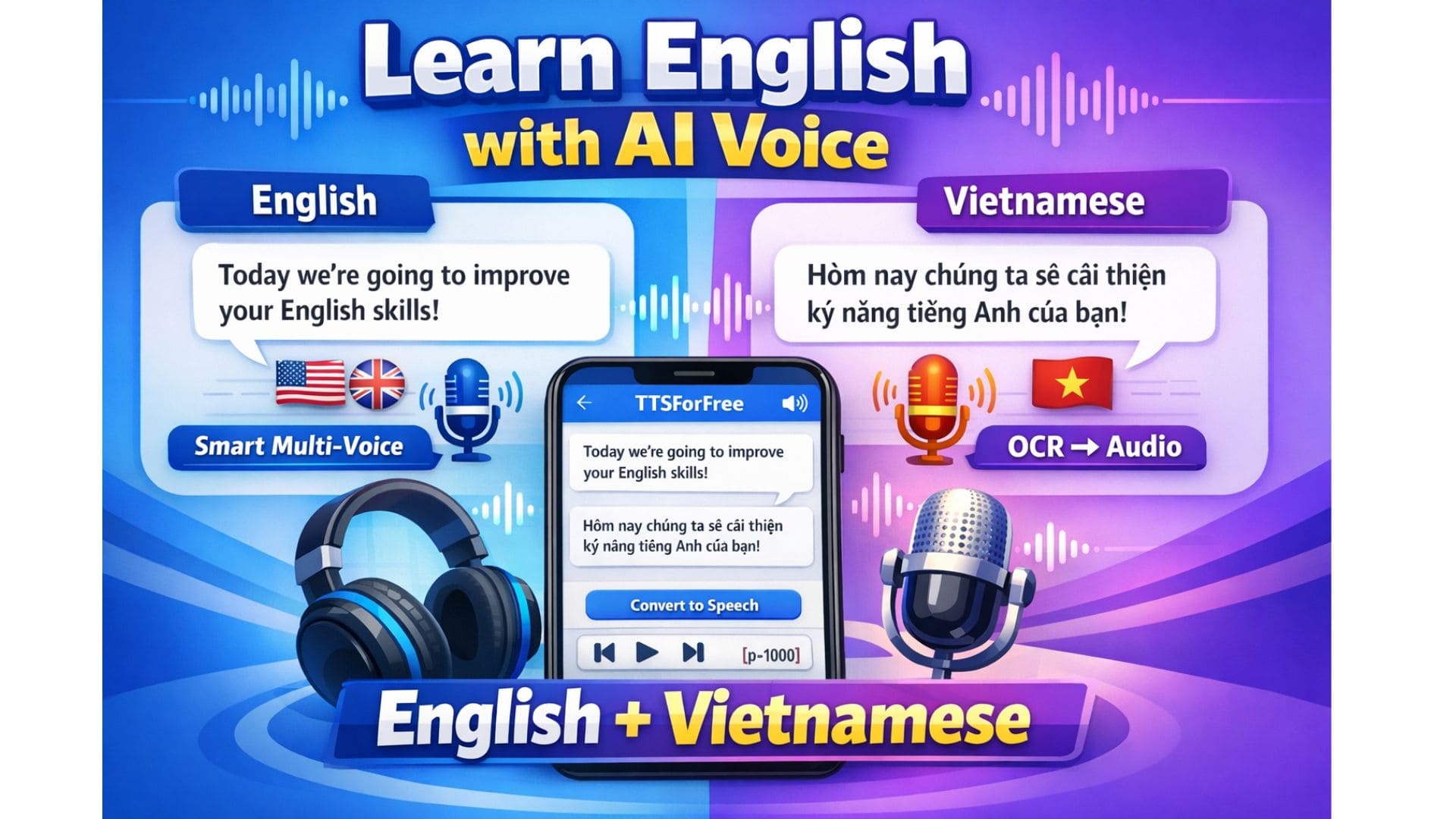
How to Create Bilingual Audio Lessons Automatically in One Click
Are you a language teacher, a content creator, or an ESL student? Do you find it exhausting to manually edit audio clips to create bilingual listening materials?
The traditional way of recording, cutting, and merging audio files can take hours. At TTSForFree.com, we’ve built a "secret weapon" to help you automate this entire process: The Smart Input Feature.
1. The Struggle of Manual Audio Creation
Creating a bilingual conversation usually requires:
- Converting English text to speech.
- Converting the translated text (e.g., Vietnamese or Spanish) to speech.
- Using an audio editor to align them with proper pauses.
It’s tedious, time-consuming, and prone to errors.
2. The Solution: What is Smart Input?
Smart Input is a specialized feature at TTSForFree.com that allows you to paste a raw script and let AI do the heavy lifting:
- Automatic Speaker Assignment: It assigns the right voice based on the names in your text.
- Bilingual Processing: It handles multiple languages in a single session.
- Precision Pausing: It inserts silence gaps exactly where you need them.
3. Steps to Generate Your Bilingual Lesson in Seconds
Step 1: Set Up Your Voice Presets
Create two characters in your Voice Library:
- Preset 1: Named "Native" (Choose a high-quality English, Spanish, or French voice).
- Preset 2: Named "Translation" (Choose your target language voice).
Step 2: Prepare Your Script
Format your text using our simple syntax:
Native: Hello, how can I help you? Translation: Hola, ¿cómo puedo ayudarte? [p=1000] Native: I am looking for a bookstore. Translation: Estoy buscando una librería.
(Note: The [p=1000] tag adds a 1-second silence gap for students to repeat the phrase).
Step 3: Paste and Apply
Click on "Smart Quick Input", paste your script, and hit Apply. The system will instantly split your text into blocks with the correct voices. Click "Convert" to get your seamless bilingual audio file!
4. Expert Tips for Better Audio
- Use OCR for Textbooks: Use our Image-to-Text (OCR) tool to scan physical textbooks and turn them into audio lessons instantly.
- Niche Languages: Use this for Japanese (Romaji), Chinese (Pinyin), or any of the 50+ languages we support.
Conclusion
Language learning shouldn't be limited by technical barriers. With TTSForFree.com, you can focus on teaching while we handle the audio production.